Open top menu
Showing posts with label Photoshop. Show all posts
Sunday, 16 November 2014
no image

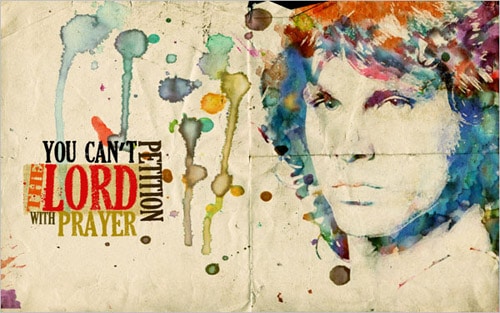
Creating an Abstract Watercolor Wallpaper

There are plenty of ways to create a Watercolor Effect in Photoshop. Some are very cheesy and you can easily tell that a simple filter has been used. In this tutorial, we will be using Layer Masking. - Author: Rahul Jha

How to Apply Textures to Uneven Surfaces

Applying texture to a flat surface, or flatly applying a texture across a whole image (as a means to age it or degrade it) is simple stuff. Realistically applying a texture to an uneven surface is much more hands-on... - Author: James Davies

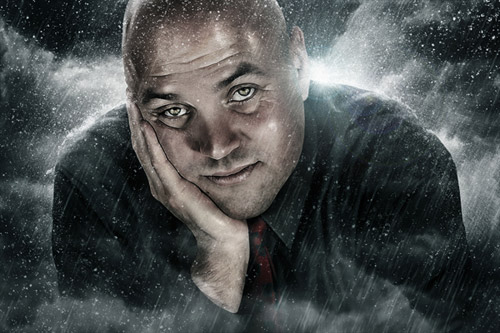
How to Turn Humdrum Photos into Cinematic Portraits

... if you work on a project that requires a stunning shot without the stunning photography, you'll be able to cobble something together using your mad skillz! Author: James Davies

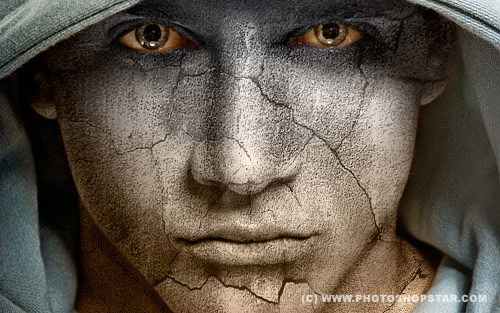
Adding Texture to the Skin

Basically, in this tutorial I’m going to be showing you how to add texture to the skin... - photoshopstar.com

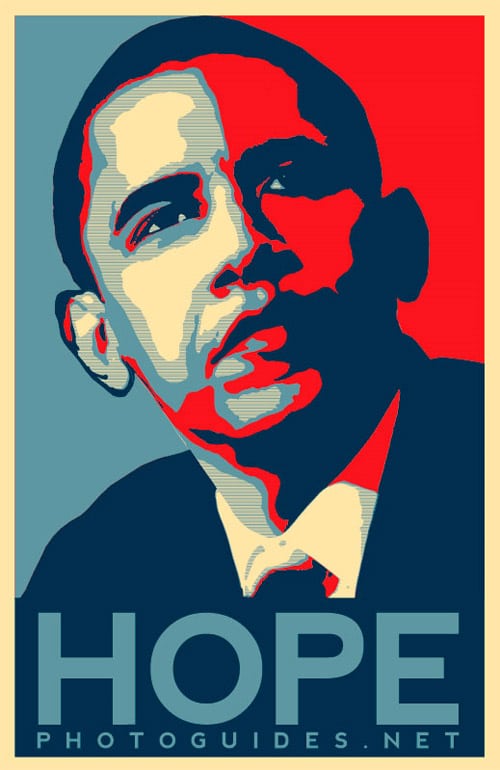
Photoshopping Obama ‘Hope’ Posters

President Obama’s ‘Hope’ poster is one of the most recognisable pieces of street art of all time and in this tutorial you’ll learn how to apply the same effect to your own photo using nothing but Photoshop. - photoguides.net

Quick Pencil Sketching Effect in photoshop

Sketching with hand is a gift. If you don’t have, no need of worrying. There is always Photoshop to help you out with making this effect. - psdguides.com

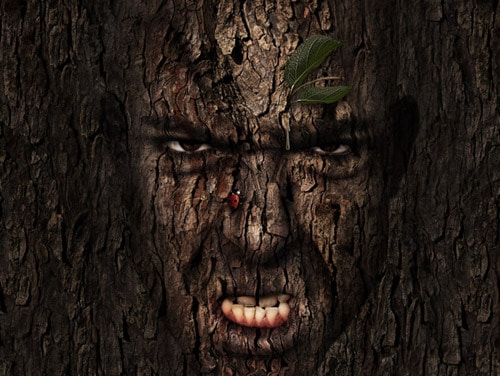
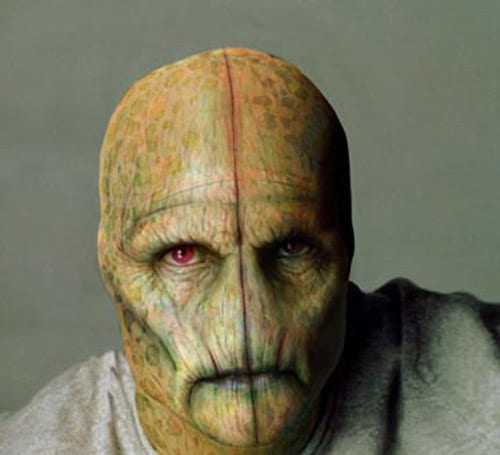
How to turn Tom Cruise into an alien

A lot of people have asked how I do a lot of my characterizations and weird aliens, so I thought I’d finally sit down and write a tutorial. - Author: Johnrmcconnell

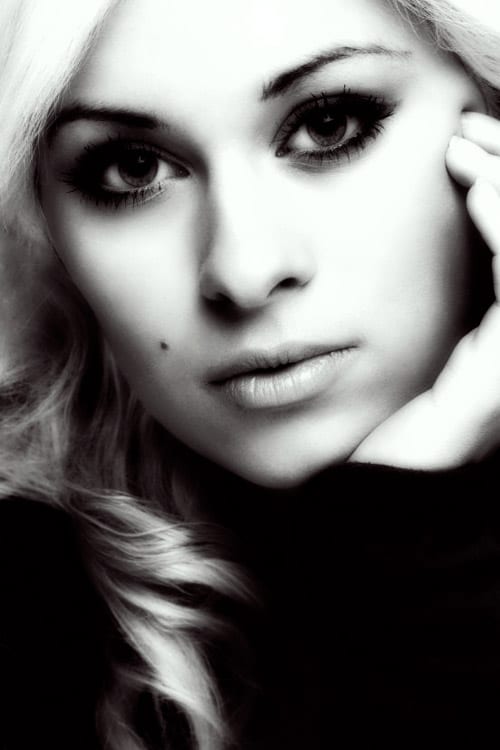
Post Production Tutorial 3

Another tutorial from our on going Post Production series, this time we’ll be creating a dreamy portrait effect.

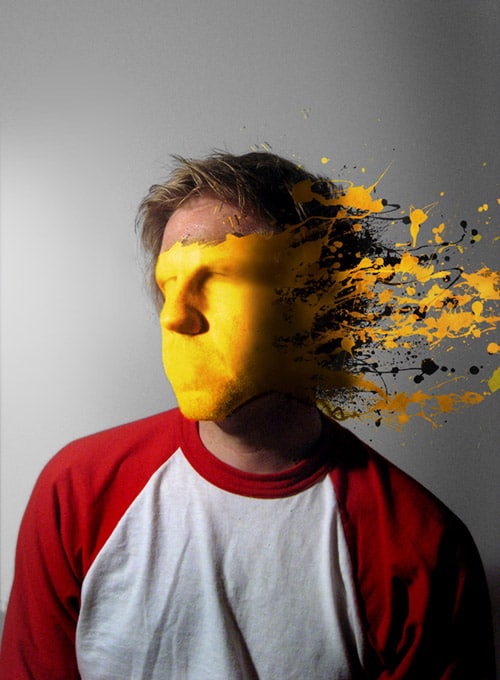
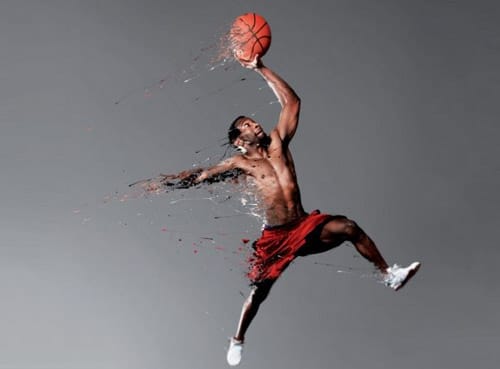
How to Mold Paint Splatter to a Face in Photoshop

n this tutorial, we'll learn how to take splattered paint Photoshop brushes and apply them to the contours of a model's face. Author: Justin Van Genderen

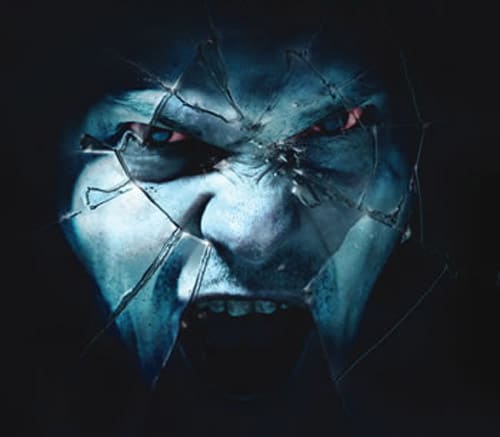
Photoshop Tutorial: Make smashing glass effects

Master a convincing shattering-glass effect that has dozens of applications with this brilliant technique from Mark Mayers.

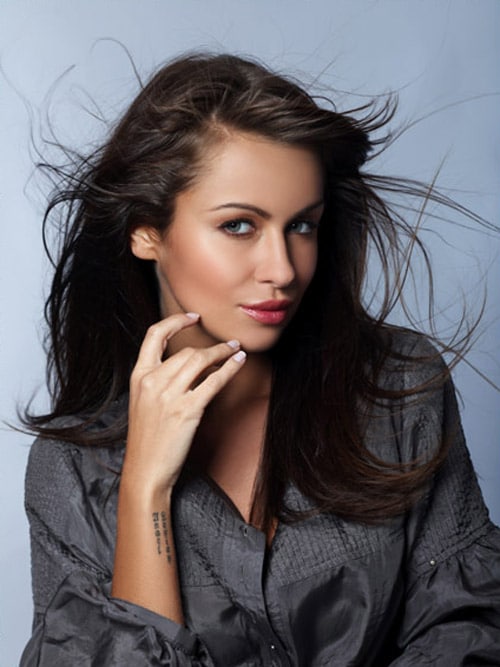
Handy Techniques for Cutting Out Hair in Photoshop

When trimming out images in Photoshop, human hair or animal fur always proves troublesome and can be tricky to achieve a realistic look. Here are two techniques I use - Author: Chris Spooner

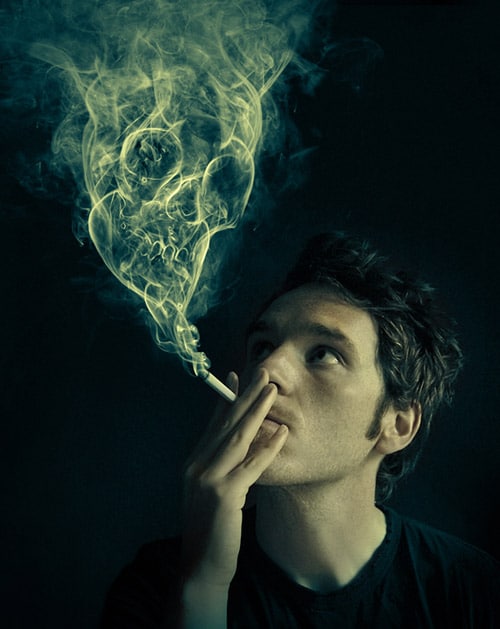
Manipulate Smoke to Create Hyper-Real Images

Learn to apply the Warp Tool effectively and a few other tricks to make smoke look like a skull. - Author: James Davies

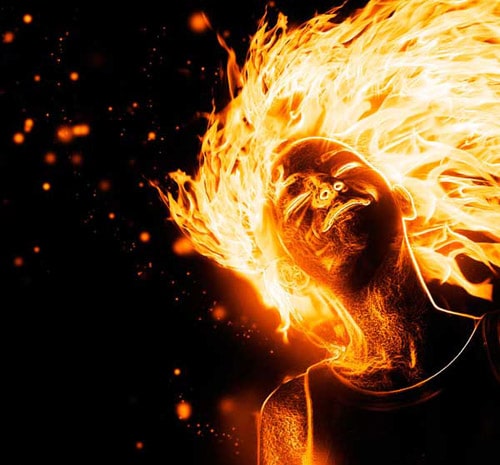
How to Create a Flaming Photo Manipulation

In this tutorial, we'll manipulate a picture so it looks like a woman burning in flames. Author: Jayan Saputra

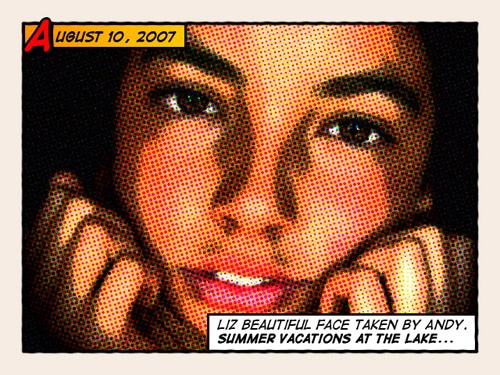
Give Your Photos a Retro Comic Book Effect

Give Your Photos a Retro Comic Book Effect

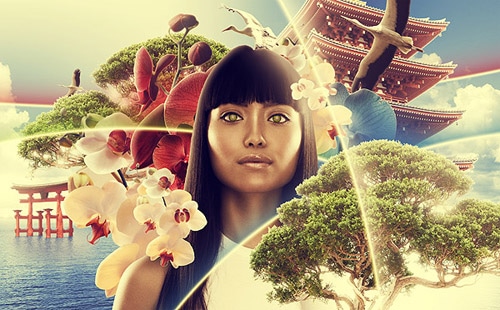
Create an Asian Inspired Illustration with Impact

Create an Asian Inspired Illustration with Impact

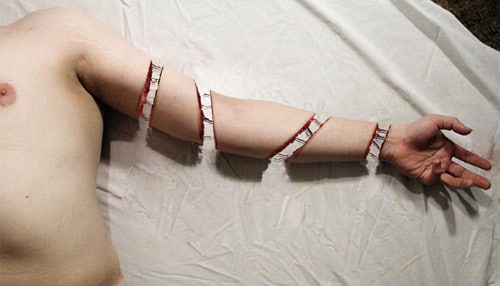
How to Create a Severed Arm in Photoshop

How to Create a Severed Arm in Photoshop

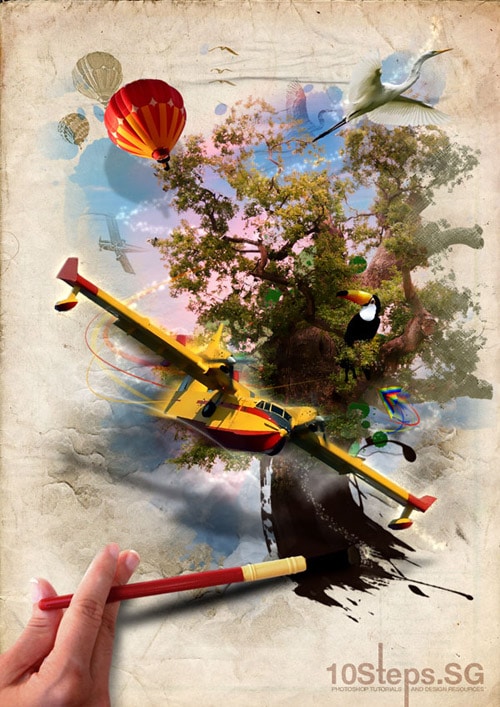
How to Create an Imaginative, Magical Painted Scene

How to Create an Imaginative, Magical Painted Scene

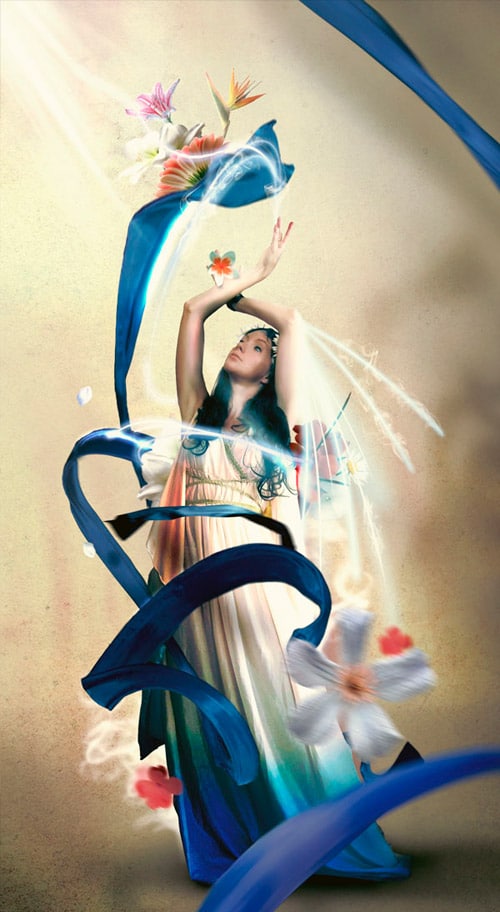
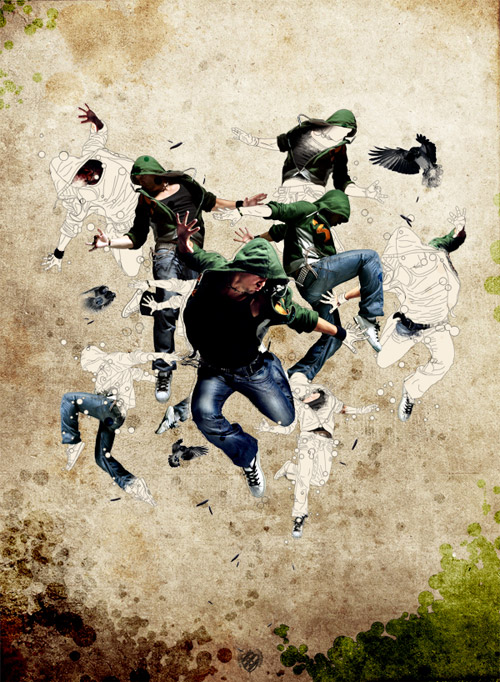
Making of the Imaginary Paint Dancers

Making of the Imaginary Paint Dancers

How to Create a Sparkling Fantasy Photo Manipulation

How to Create a Sparkling Fantasy Photo Manipulation

Create dynamic distortion effects

Create dynamic distortion effects

Create a Sleek Illustration that Fades from Line Art to Color

Create a Sleek Illustration that Fades from Line Art to Color

Dazzling Dance Photo Manipulation

Dazzling Dance Photo Manipulation

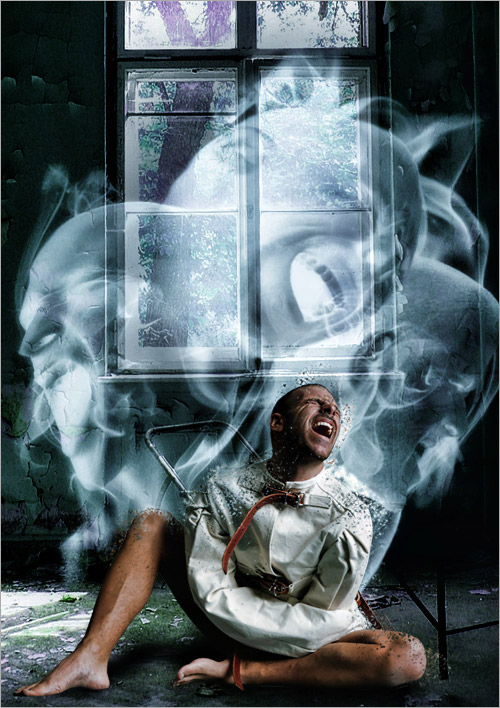
Making of a Scary Mental Hospital Scene

Making of a Scary Mental Hospital Scene

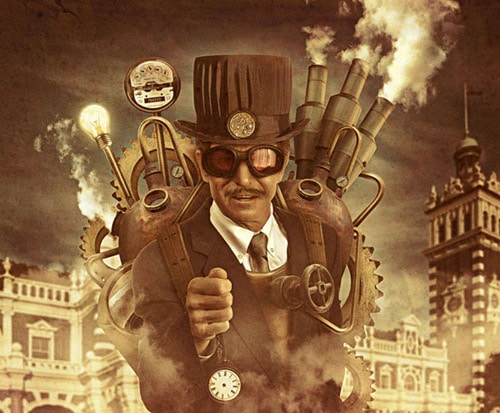
How to Create a Steampunk Style Illustration in Photoshop

How to Create a Steampunk Style Illustration in Photoshop

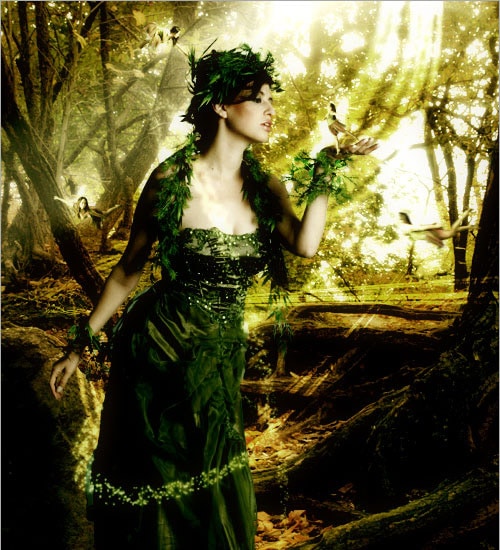
Making of a Forest Magical Scene

Making of a Forest Magical Scene

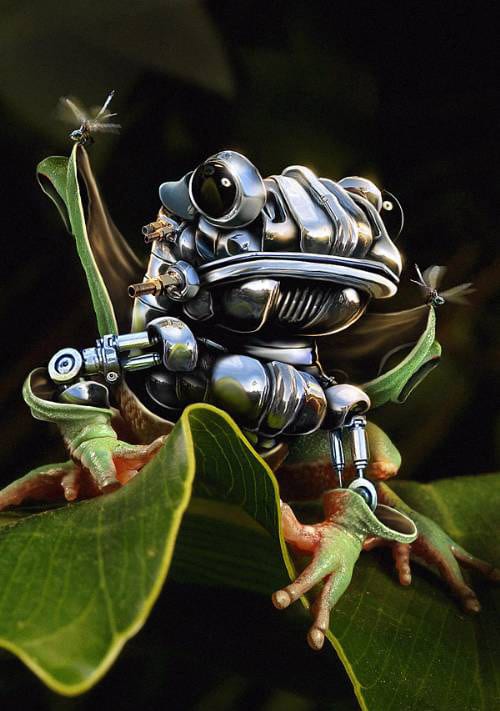
The Making of a Robotic Frog

The Making of a Robotic Frog

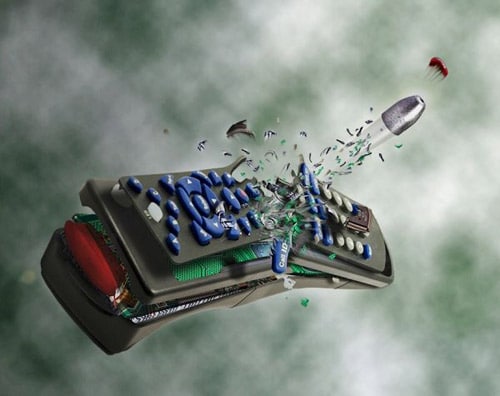
Photoshop Tutorial: Create A Slow Motion Bullet Shot Effect

Create A Slow Motion Bullet Shot Effect

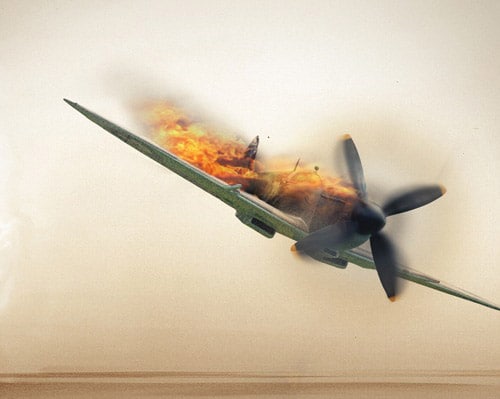
Manipulating a WW2 Fighter Aircraft

Manipulating a WW2 Fighter Aircraft

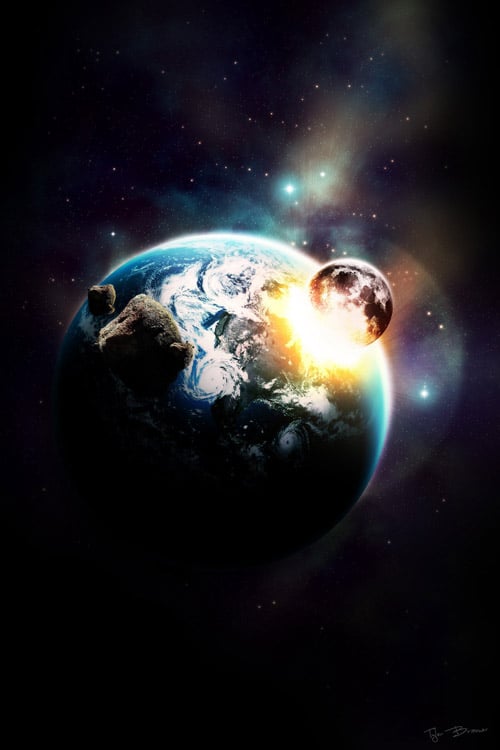
Space Explosion Photoshop Tutorial

Space Explosion Photoshop Tutorial

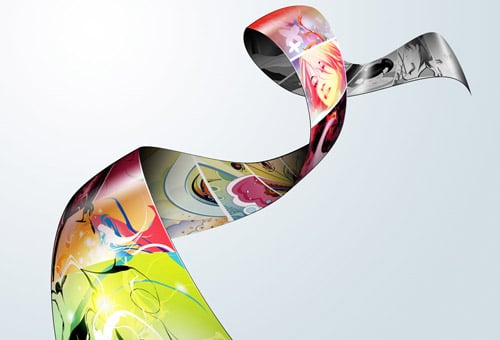
Photo Strip (Photoshop Tutorial)

Photo Strip

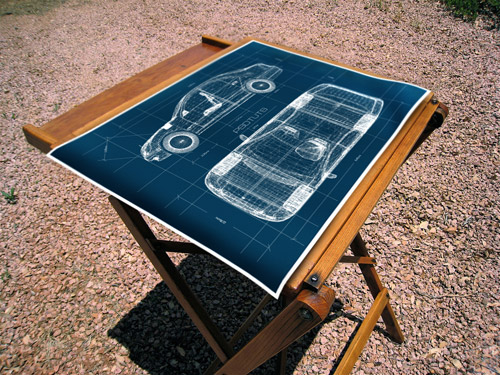
Create a Realistic Blueprint Image From a 3D Object

Create a Realistic Blueprint Image From a 3D Object

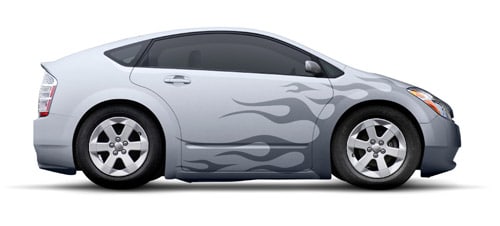
How to Add Flaming Decals to a Modern Car Design

How to Add Flaming Decals to a Modern Car Design

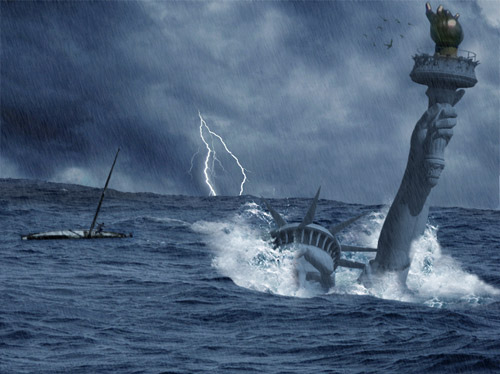
Create a Catastrophic Tsunami, Impacting the Statue of Liberty

Create a Catastrophic Tsunami, Impacting the Statue of Liberty

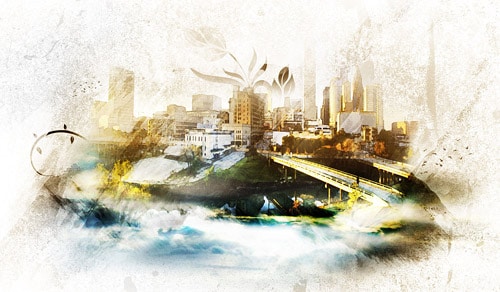
Design an Awesome Watercolour Style “City on Cloud” Artwork in Photoshop

Design an Awesome Watercolour Style “City on Cloud” Artwork in Photoshop

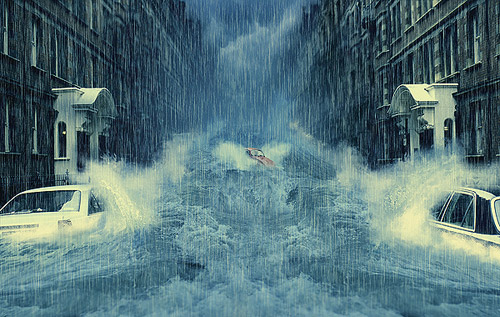
How to Create a Photo Manipulation of a Flooded City Scene

How to Create a Photo Manipulation of a Flooded City Scene

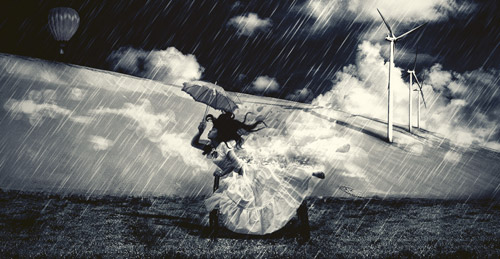
How to Create a Dark Surreal Illustration in Photoshop

How to Create a Dark Surreal Illustration in Photoshop

AHHHHH! Oy! Alien Invasion! A Photoshop Tutorial..

Alien Invasion!

Use a 3D Model to Create a Dramatic Scene in Photoshop

Use a 3D Model to Create a Dramatic Scene in Photoshop

Read more
no image

membuat efek api Membuat Efek Api Pada Tulisan Dengan Photoshop 
Membuat Efek Api – Kali ini kita akan belajar efek photoshop tentang cara membuat efek api pada photoshop. Cara yang saya berikan ini memanfaatkan efek-efek yang ada pada blending options, efek blur dan juga penggabungan teks dengan gambar api. penggabungannya pun mudah, kita gunakan mode lighten untuk gambar apinya pada settingan blend mode. dan untuk terlihat lebih rapi pada gambar apinya saya hapus bagian-bagian yang kiranya tidak diperlukan. Untuk lebih jelasnya, mari kita langsung saja dengan mengikuti langkah-langkahnya berikut ini.

membuat efek api
Bahan-bahan
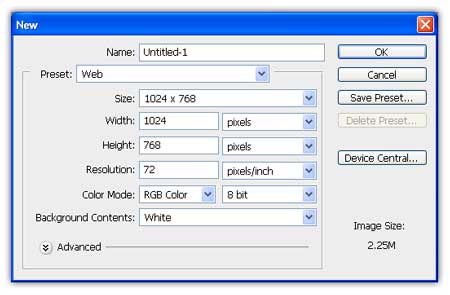
Buat lembar kerja baru dengan cara File – New (Ctrl+N). Dengan ukuran Width 1024, Height 768 dan resolution 72.
1 Membuat Efek Api Pada Tulisan Dengan Photoshop
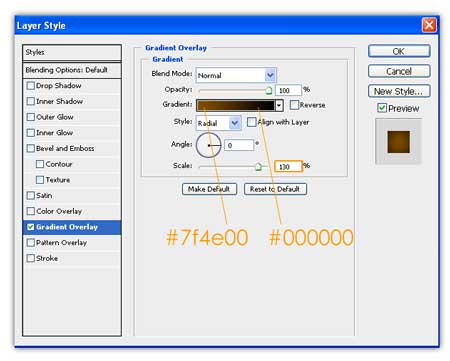
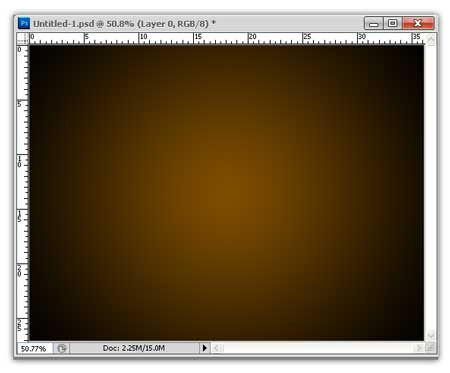
Kemudian kita beri efek gradient overlay pada backgroundnya dengan cara Layer – Layer Style – Gradient OverlayPada pengaturan warnanya kombinasi antara warna #000000 dan warna #7f4e00. Dan pada Scale diisi dengan 130%. 21 Membuat Efek Api Pada Tulisan Dengan Photoshop
 Hasil dari gradient dapat dilihat seperti tampak gambar dibawah ini. 31 Membuat Efek Api Pada Tulisan Dengan Photoshop
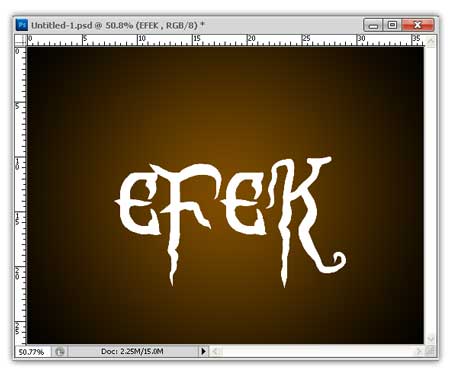
Selanjutnya kita buat teksnya dengan menggunakan font Blood Omen. 41 Membuat Efek Api Pada Tulisan Dengan Photoshop
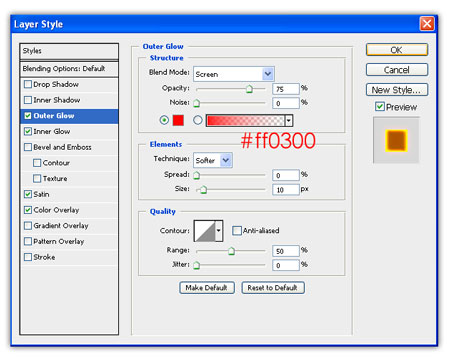
  Blending Options – Outer Glow outer glow Membuat Efek Api Pada Tulisan Dengan Photoshop
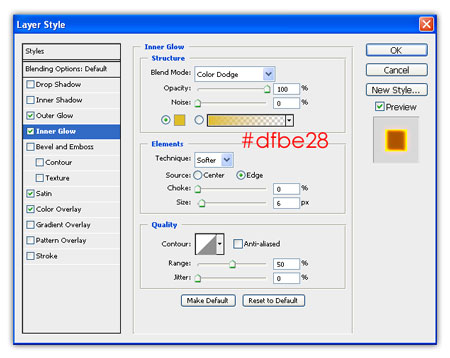
 Blending Options – Inner Glow inner glow Membuat Efek Api Pada Tulisan Dengan Photoshop
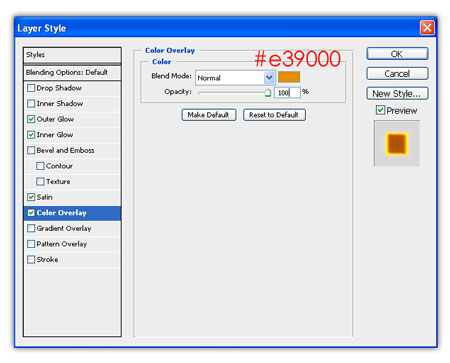
 Blending Options – Color Overlay
  collor overlay Membuat Efek Api Pada Tulisan Dengan Photoshop  
Blending Options – Satin
 satin Membuat Efek Api Pada Tulisan Dengan Photoshop
 Hasil sementara akan terlihat seperti gambar dibawah ini.
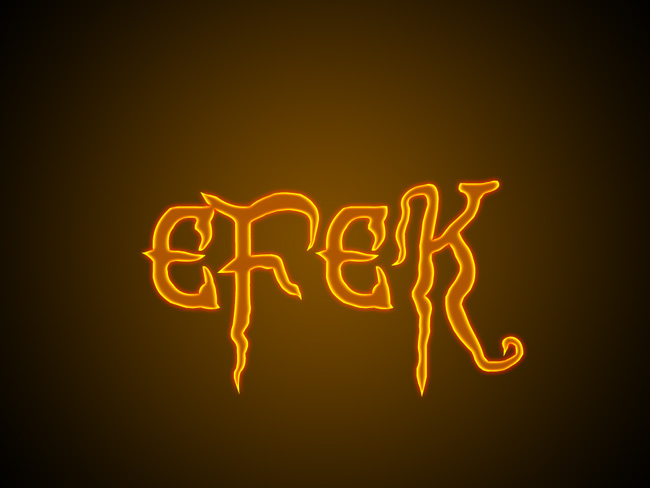
cara membuat efek api Membuat Efek Api Pada Tulisan Dengan Photoshop
cara membuat efek api
Lalu kita duplikat teks tersebut kemudian pilih menu Filter – Blur – Gaussian Blur. Isi Radiusnya 6 pixels.
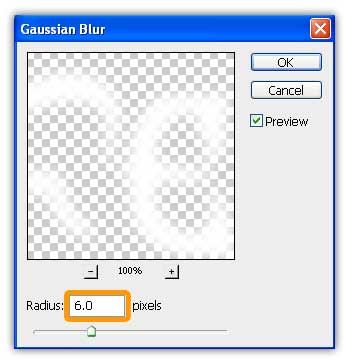
blur Membuat Efek Api Pada Tulisan Dengan Photoshop
efek api pada photoshop Membuat Efek Api Pada Tulisan Dengan Photoshop
efek api pada photoshop
Buka gambar api lalu lalu lakukan seleksi kemudian drag pada lembar kerja. Untuk lebih jelasnya perhatikan penjelasan gambar dibawah ini. seleksi Membuat Efek Api Pada Tulisan Dengan Photoshop
 Setelah terseksi lalu kembalikan lagi channels seperti semula. seleksi2 Membuat Efek Api Pada Tulisan Dengan Photoshop
 kemudian drag kelembar kerja dan atur posisinya sesuka anda, anda juga bisa berimprovisasi dengan menghapus bagian-bagian jika kiranya tidak diperlukan. 51 Membuat Efek Api Pada Tulisan Dengan Photoshop
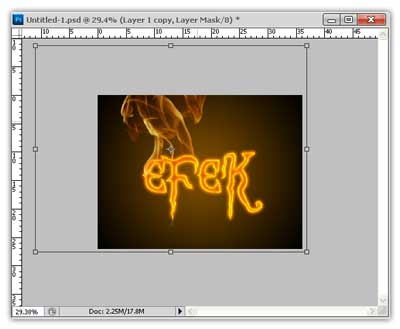
 Lakukan langkah seleksi diatas untuk gambar api yang ke2. dan atur posisinya sehingga tampak seperti gambar dibawah ini.
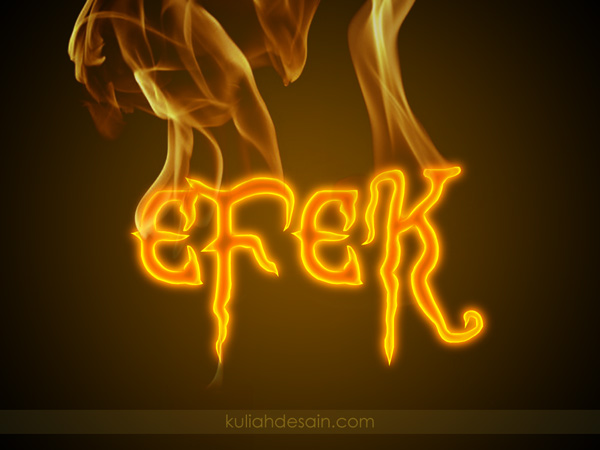
membuat efek api Membuat Efek Api Pada Tulisan Dengan Photoshop
membuat efek api

Demikian Informasi Cara Membuat Efek Api Pada Tulisan Dengan Photoshop, semoga informasi ini bermanfaat untuk anda. Jika ada pertanyaan mengenai Cara Membuat Efek Api pada photoshop, anda bisa hubungi kami di menu kontak di web kuliah desain ini. Terimakasih anda telah mengunjungi kuliah desain dan membaca informasi mengenai.
Read more